
How to Adjust and Find the Perfect LOD for Your Gaming Setup
📅Feb. 06. 2026
In high-performance gaming, we obsess over DPI and polling rates, but many overlook LOD (Lift-Off Distance). Adjusting this is crucial because an incorrect setting—whether too high or too low—breaks your consistency. It causes your cursor to either jump during resets or stop tracking during fast swipes, making it impossible to build reliable muscle memory.
LOD is the height at which your sensor stops tracking once it leaves the surface. It isn’t a fixed number; it’s a dynamic interaction between your sensor and your mousepad’s color and texture. Because this “boundary” changes depending on your gear and playstyle, finding the right balance is essential.
This article is mainly to help you understand the impact of LOD and how to adjust LOD for a proper setting based on your setup.
Step 1. Understand the Impact of LOD: Real-World Gaming Scenarios
Before adjusting your settings, it is essential to learn how “High” vs. “Low” LOD behaviors change your mouse’s performance
When LOD is Too High (>2.0mm)
A high LOD can mess with your muscle memory, especially if you use low-to-mid DPI and frequently “reset” your mouse position.
- Tactical FPS (e.g., CS2, Valorant): Imagine holding an angle and needing to make a big 180-degree turn. You swipe, lift your mouse to bring it back to the center of the pad, and—because the LOD is too high—the sensor still tracks your hand moving through the air. Your crosshair drifts away from head level, forcing you to readjust and possibly losing the duel.
- Defocus Jitter: Near its tracking limit, the sensor can enter a semi-blurred state, making the image engine struggle. This can cause tiny vibrations or “jumps.” In games like Apex Legends, this turns what should be a smooth spray into shaky, inaccurate vertical movements.
When LOD is Too Low (<0.8mm)
While ‘lower is better’ is a common rule of thumb, an ultra-low LOD can still cause minor tracking inconsistencies.
- MOBA & Fast-Paced Action (e.g., League of Legends, Overwatch 2): During hectic team fights, players often tilt the mouse slightly (Tilt-Slam) while clicking rapidly. If your LOD is set too low, even a tiny tilt can make the sensor lose contact. Suddenly, your champion stops moving, or your ability misses at the most critical moment.
- Surface Dead Zones: Your mouse may work perfectly in the center of the pad but skip or drop frames when flicking to the edges. Even high-end pads have micro-variations in weave density; an overly aggressive LOD doesn’t leave enough buffer to handle these inconsistencies.
Step 2. How Your Mousepad and Material Determine LOD
After identifying how LOD impacts your playstyle, you need to understand the physical factors that determine these values. One of the biggest misconceptions is that LOD is a fixed setting; in reality, it is a dynamic interaction between your sensor and the surface beneath it.
1. Surface Hardness
- Hard pads (plastic or glass): Reflect more light, which usually makes the sensor stop tracking later—so the effective LOD is higher.
- Soft cloth pads: Absorb more light, so the sensor stops tracking sooner, giving a lower LOD naturally.
2. Texture & Weave
- Even among cloth pads, rough or coarse weaves (like the Zowie G-SR-SE) typically produce a higher response height than smooth, fine weaves.
- The sensor may continue tracking “valleys” in the texture even as you lift the mouse slightly.
3. Color & Patterns
- Black mousepads tend to produce low, consistent LOD.
- Multi-colored or patterned pads can cause LOD to shift mid-swipe, making the crosshair feel “floaty” as it passes bright logos or dark areas.
Step 3. Set and Play: Finding Your Ideal Range
Once you understand how your mousepad material dictates your sensor’s behavior, you can begin calibrating for your specific needs. While the “perfect” setting is subjective, most competitive players fall into two primary categories based on their movement patterns and game genres.
Recommended Ranges
| Player Type | LOD Range | Reason |
|---|---|---|
| FPS | 1 – 1.5 mm | Sensor should stop tracking immediately on lift for precise resets. |
| MOBA / Casual | 1.5 – 2.0 mm | Adds a safety buffer for fast clicks and variable surfaces. |
| Casual / Office | 1.8 – 2.0+ mm | Ensures consistent tracking on uneven desks or non-gaming surfaces. |
Step 4. Calibrating Your LOD: Finding the Sweet Spot
1. Verification Techniques
Before changing your software settings, use these manual tests to gauge your current performance:
- Card Test: Place a standard credit card (≈0.76 mm) under your mouse. If the sensor still tracks, your LOD is at least higher than the card’s thickness.
- Corner-to-Corner Sweep: Move to extreme pad edges. If the cursor flickers or cuts out, your LOD is too low for that specific part of the pad—consider raising it slightly.
- Lift-Slam Check: Rapidly lift and reposition the mouse while watching your crosshair. If it shifts more than a few pixels during the transition, your LOD should be lowered.
2. Software Precision: Adjusting Your Settings
Once you have identified how your mouse reacts to your surface, you can use your driver software to apply precise changes. Most modern high-performance sensors—such as the PAW3395 and PAW3950—provide granular control, typically supporting response heights of 0.7mm, 1.0mm, and 2.0mm.
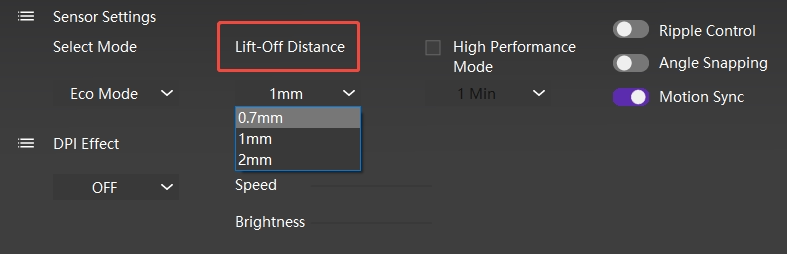
While these presets offer a great baseline, remember that technical specs are only half the battle. The final calibration should always happen in-game; pay close attention to how the mouse feels during intense flick shots or resets to find the setting that best complements your unique muscle memory.
Additional Insight: The Hardware Synergy
You might notice that the same LOD value feels different across various mice. This is because achieving a stable, predictable cutoff isn’t just a software setting—it’s a hardware synergy within the mouse itself:
- Precision Sensors: High-performance sensors feature refined CMOS engines that handle surface reflections accurately, providing a sharp “cutoff” point even on difficult textures.
- High Polling Rates: A higher polling rate allows the mouse to capture the exact millisecond of lift-off more frequently, reducing the “lag” between lifting your mouse and the sensor stopping.
- Powerful MCUs: A fast Microcontroller Unit (MCU) ensures the “stop tracking” signal is processed instantly, preventing any accidental cursor drift during the transition.
In short: the better the internal hardware, the more “forgiving” the mouse becomes when you push for those lower, competitive LOD values.
Further Reading:
A quick deep dive into what LOD is and how this “invisible switch” affects mouse reset behavior, tracking stability, and in-game control.
[➡️ What Is LOD? The Invisible Switch Behind Every Mouse Reset]