Frequently Asked Questions
Find answers to common questions about our keyboards, setup guides, and troubleshooting solutions
No results found
Try different keywords or browse categories
Please try to flash the latest firmware: M5 QMK firmware.
You can follow the steps below:
1. Download QMK Toolbox: If prompted, proceed with the installation process and wait for it to complete.
2. Open QMK Toolbox: Launch the QMK Toolbox software on your computer. If it’s your first time using it, you may be prompted to install the necessary drivers. Follow the on-screen instructions and wait until the installation is finished.
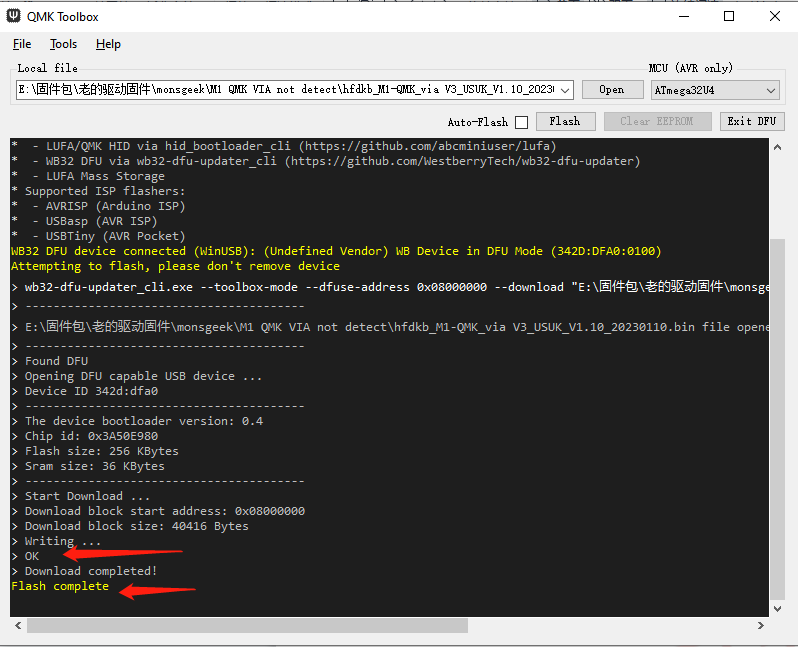
3. Locate the firmware: Click the “Open” button in the QMK Toolbox to browse and select the appropriate .bin firmware file for your keyboard model. Ensure you have downloaded the correct firmware version for your keyboard.
4. Enter Bootloader mode: Disconnect the USB cable from your keyboard. While holding down the “ESC” key, reconnect the USB cable. You should notice the “Flash/Exit DFU” button in the QMK Toolbox turn black, indicating that you are now in Bootloader mode.
5. Flash the firmware: With your keyboard in Bootloader mode, click the “Flash” button in the QMK Toolbox to begin the firmware flashing process. Wait until you see the “OK” message indicating that the firmware update is complete.
6. Exit Bootloader mode: After the firmware has been successfully flashed, click the “Exit DFU” button in the QMK Toolbox. You can then close the QMK Toolbox software.