
How to Check Keyboard Polling Rate:
Is your 8K keyboard truly 8K?
📅Dec. 30. 2025
With the advent of high-performance gaming peripherals, 8,000Hz (8K) polling rate keyboards have taken center stage. But for many users, a crucial question remains: Is my keyboard truly operating at this advertised high (even up to 8K) polling rate? How do I verify it on my own?
While numerous software and tools are available for testing, obtaining truly accurate and reliable polling rate measurements often proves challenging, even for experienced users, since a multitude of factors can influence the results and potentially mask a keyboard’s true performance..
The Challenge of Checking Polling Rate
It’s important to preface this by saying that truly verifying an 8K polling rate with absolute, scientific precision often requires specialized laboratory-grade equipment, such as high-speed oscilloscopes, dedicated USB protocol analyzers (hardware-based), or custom-built input latency testing rigs. These tools can precisely measure the microsecond-level timing of data packets on the USB bus.
For the average user, accessing such equipment is impractical. However, there are software tools that records the input from keyboard and analyzes based on mathematical algorithms to offer a close estimation and strong indication of your keyboard’s polling rate, pushing the boundaries of what’s possible outside a dedicated lab.

USB protocol analyzers by Teledyne LeCroy

high-speed oscilloscopes by Teledyne LeCroy
Tools to Check Keyboard Polling Rate
1. Bus Hound
- Description: A USB protocol analyzer software that captures and analyzes I/O communication data, including USB traffic.
- Accuracy: Can provide reliable polling rate information since it looks directly at raw USB communication. However, accuracy depends on PC performance and interpreting the captured data correctly.
- PC Needs: Requires a Windows PC with sufficient resources to handle the logging and analysis. Performance-heavy tasks on the same system can affect results.
- Method: Install Bus Hound, configure it to monitor USB traffic from your keyboard, and analyze the packet intervals to estimate polling rate.
2. Keyboard Inspector (End-to-End Latency Testing)
- Description: Keyboard Inspector doesn’t directly test USB polling rate. Instead, it measures the entire path from a physical keypress to the keypress reaching a userspace application. Polling rate is just one factor within this broader latency chain. If you’re specifically targetting testing USB poll rate – meaning how often the USB host controller interrupts the device (SOF) – then BUS HOUND is probably one of the worse ways to do it. You can just look at bInterval of the USB descriptor, modern desktop OS hosts respects that. If you wanted to truly verify, Wireshark USBPcap is enough, but you can go even more hardcore with a hardware usb analyzer
- Accuracy: Offers a realistic picture of input latency in practice, making it especially useful for gamers who care about responsiveness beyond raw poll numbers. If you want to learn more or share results, you can join the Keyboard Inspector Discord
- PC Needs: For 8KHz, a modern CPU (e.g., Intel i7/Ryzen 7, recent gen), ample RAM, and a clean OS environment are recommended to handle high data throughput. Connect directly to a USB 3.0+ port (avoiding hubs).
- Method: Download, run, “Start Recording,” rapidly spam keys for ~10 seconds, “Stop Recording,” then set “Binning Rate” (e.g., 16000Hz for 8KHz testing) for analysis.
3. Online Polling Rate Testers (Highly Unreliable – Not Recommended)
- Description: Web-based tools using JavaScript that try to estimate keypress frequency (e.g., GameMax Keyboard Polling Rate Test).
- Accuracy: These tests are highly unreliable and often result in large latency values due to browser overhead, inconsistent JavaScript execution, and system load. They do not accurately reflect true USB polling behavior.
- PC Needs: Minimal; runs in a browser.
- Method: Although you can visit a site, click start, and press keys rapidly, the results are generally meaningless for serious testing.
Step-by-Step Guide: Estimating Your Keyboard’s Polling Rate with Keyboard Inspector
1. Download Keyboard Inspector(only recommended to run in Safe Mode):
You can usually find the latest release on the official GitHub page for latest Keyboard Inspector.
2. Extract and Run:
Once downloaded, extract the contents of the zip file to a folder of your choosing.
Keyboard Inspector is a portable application, so there’s no installation needed. Simply run the executable file.
3. Start Recording:
In the Keyboard Inspector interface, locate and click the “Start Recording” button (usually in the top-right corner).

4. Generate Input:
- To get accurate data, you need to provide the program with enough input.
- Spam keys vigorously:The most common method is to rapidly and repeatedly press several keys (e.g., “W” and “E”, or “A”, “S”, “D”) for at least 30-60 The more data you provide, the more accurate the analysis will be.
- Alternate keys:Some users suggest alternating between two keys for a few seconds.
- Try in a rhythmic manner:For some keyboards, a rhythmic press of a few keys can also yield good results.
5. Stop Recording:
After pressing keys for a sufficient duration, click the “Stop Recording” button.
6. Adjust the Binning Rate and Analyze Polling Rate:
- Once recording is stopped, the analysis interface will show.
- Adjust the Binning Rate on the Analysis section/tab (as indicated by the white arrow on the recording data panel) according to the target polling rate. The Binning Rate should be set to at least 2× the Polling Rate. For example, if you’re testing at 8000Hz, set the Binning Rate to 16000Hz.
- After setting the correct Binning Rate then look at the orange charts. Focus on the right side of these charts, where you can see the number in the bottom right corner. This chart indicates that the majority of the key presses.
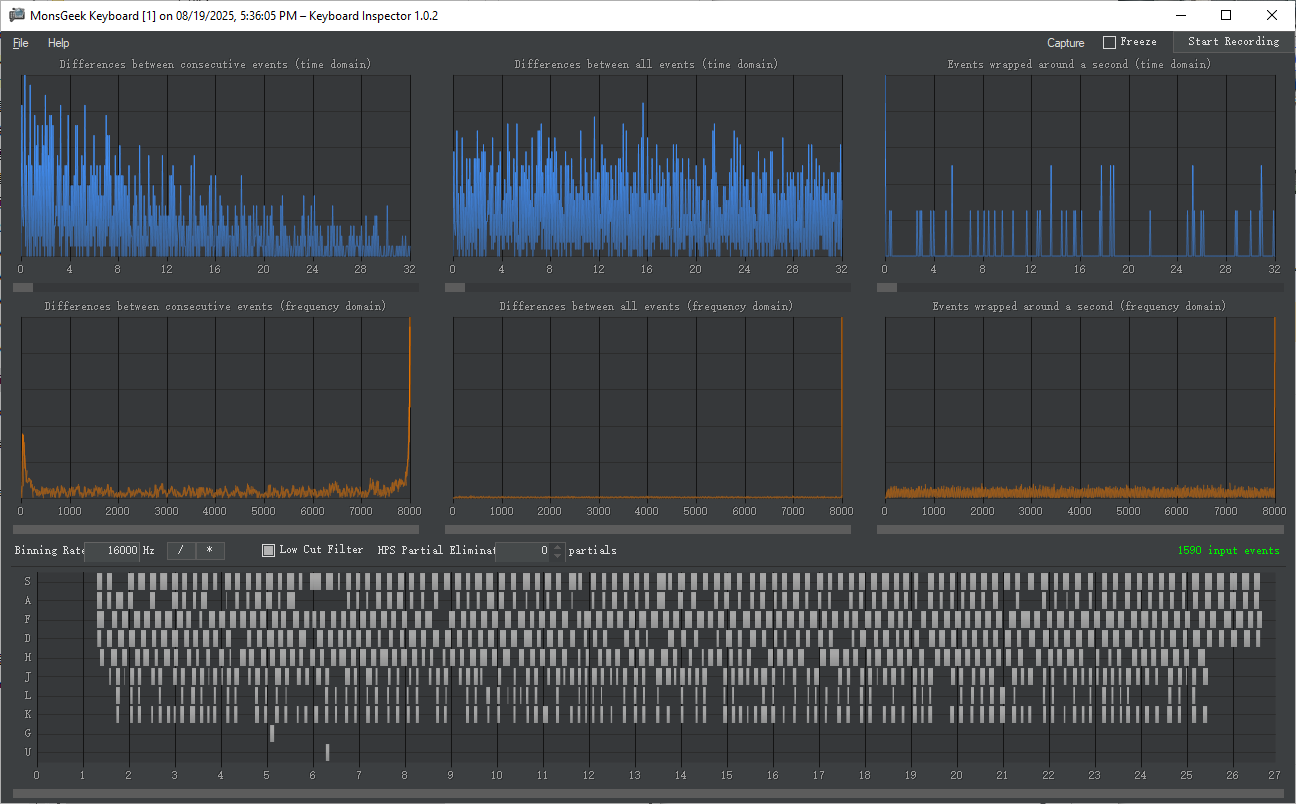
Test result by MonsGeek M1 V5 TMR (In Wired Connectivity)
Tips for Accurate Polling Rate Testing:
Testing Tips
- Close background applications: Programs consuming resources—or with own input hooks—can interfere with readings. Close them and disable antivirus temporarily.
- Connect directly to a USB port: Avoid hubs. For wired 8 kHz testing, ensure the keyboard cable and port support it.
- Use Windows Ultimate Performance power plan: Standard Balanced plans can limit polling rates. Switch to Ultimate Performance for more accurate results.
- Try Safe Mode or Administrator Mode: Running in Safe Mode (or as admin) can reduce noise and help isolate whether drivers or background software are contaminating data.
- Read and interpret the results: Keyboard Inspector shows histograms and frequency-domain plots—understanding these helps you see if your input data has clean peaks (indicating stability) or noise that may require more data or adjusted binning.
- Set the binning rate correctly: Typically 2× polling rate (e.g., 16,000 Hz for 8 kHz measurement).
- Driver/Firmware Configuration: Some keyboards require enabling high polling rates through their specific driver software or firmware settings. Check your keyboard’s manual or software to ensure it’s configured for the highest possible polling rate.
- Ensure sufficient input data: If analysis shows “Not sure, maybe X Hz”, record longer or increase keypress speed.
Data Understanding Tips
- Check consistency: Polling rate should stay close to the target (e.g., 8000 Hz). Large spikes/drops indicate interference.
- Look for patterns: Note when drops occur—specific keys or software may be causing it.
- Compare modes/settings: See if behavior changes with different polling rates.
- Review stats: Min, max, and average values help spot deviations.
- Document anomalies: Record unusual readings and repeat tests to confirm consistency.
Why Your 8K Keyboard Might Not Run at 8K
Even if your keyboard supports 8K polling rate, several factors may limit it:
- Outdated USB ports– 8K needs a USB 3.0 (or higher) port to run reliably. Avoid using USB hubs or front-panel ports that might not support full bandwidth.
- Drivers not installed– Missing or outdated drivers can cause fallback to lower polling rates.
- Operating system limitations– Some OS versions, especially older ones, may not optimize HID polling above 1KHz.
- Cable quality or length– A poor-quality or excessively long USB cable can introduce interference or signal degradation.
Pro Tip: Don’t Confuse Polling Rate with Scan Rate
Polling rate tells you how often data is sent. Scan rate how frequently the keyboard’s controller checks the switch matrix to detect key presses. Low latency comes from the combination of:
- High polling rate (8K)
- Fast switch technology (like magnetic switches or optical switches)
- Stable firmware and optimized software
Verifying a keyboard’s polling rate with high accuracy isn’t easy—it usually requires specialized lab equipment like oscilloscopes or USB protocol analyzers to capture signal timing at the microsecond level. However, in everyday use or gaming scenarios, what’s more important is achieving performance that closely aligns with real-world usage habits—maximizing the keyboard’s capabilities where it truly matters.
Further Reading
Want to dive deeper into related keyboard performance topics? Check these out:
Still confused about polling rate basics? This guide explains what it is and whether higher always means better.
Learn the pros and cons of 2.4GHz and Bluetooth connections for gaming, and which one gives you the edge.
Find out how NKRO and anti-ghosting improve your gaming experience by ensuring every keypress is registered.